Settings covers where the app opens, how it syncs with iCloud, how it reminds you, and how it estimates and breaks down work. This page runs through the root list top to bottom.
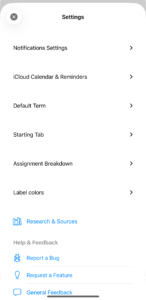
The list has two halves, and a caption partway down marks the divider. Above it is the day-to-day: notifications, sync, which term and tab you start in, how assignments get broken down, and label colors. Below it are the settings that change how StudiFoca behaves across the app. Help & Feedback is the boundary—it’s always the last thing above the line.
Notifications Settings
Two separate levels live here, and it’s worth keeping them apart in your head. Reminder level controls StudiFoca’s own in-app notifications. iCloud alert level controls whether Calendar and Reminders additionally send their own alerts for the items StudiFoca has synced into them; it runs independently of StudiFoca’s notifications, and it only appears when iCloud sync is on.
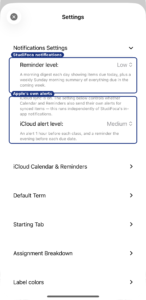
Reminder level: Low. iCloud alert level: Medium—”An alert 1 hour before each class, and a reminder the evening before each due date.” For what each Reminder level actually sends, see Reminders & notification levels.
iCloud Calendar & Reminders
Turn sync on, choose what goes where, and run a manual sync for a term you pick.
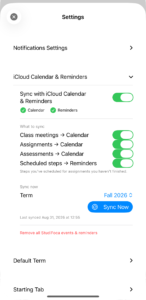
Four switches decide what syncs, and each works independently of the others. Class meetings, assignments, and assessments all go to Calendar. Scheduled steps—the steps you’ve scheduled for assignments you haven’t finished—go to Reminders. Full walkthrough in Syncing steps to Reminders.
Sync Now runs a manual pass for the term selected just above it, and the timestamp underneath shows when that term last synced.
Remove all StudiFoca events & reminders clears everything StudiFoca has synced, without affecting anything you created yourself in Calendar or Reminders.
Default Term
Which term the app treats as current, plus an option for schools whose terms don’t run standard lengths.
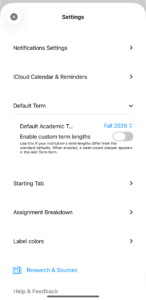
Enable custom term lengths starts off. Turning it on adds a week-count stepper to the Add Term form, for institutions whose term lengths differ from the standard defaults.
The standard defaults, which set a term’s starting length when you pick its type:
| Term type | Weeks |
|---|---|
| Semester | 16 |
| Quarter | 10 |
| Trimester | 12 |
| Summer | 8 |
| Winter | 3 |
| Block | 4 |
| Academic Year | 36 |
| Other | 15 |
With custom lengths on, the stepper in the Add Term form lets you set any of these to whatever your institution actually uses.
Starting Tab
Choose which tab greets you on launch.
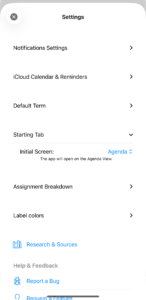
Initial Screen set to Agenda—”The app will open on the Agenda view.” Agenda is the default. Until the first term exists, StudiFoca opens on the Terms tab no matter what this is set to, so a new term is one tap away; once a term exists, this setting takes over.
Assignment Breakdown
Whether assignments can be broken into steps, how long a focus block runs, and how estimates are phrased.
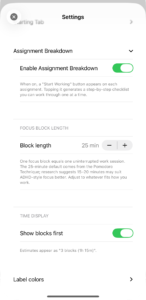
Enable Assignment Breakdown puts a Start Working button on each assignment; tapping it generates a step-by-step checklist you can work through one at a time.
Block length sets how long one focus block runs. One block is one uninterrupted work session. The 25-minute default comes from the Pomodoro Technique; as the note in the app mentions, research suggests 15 to 20 minutes may suit ADHD-style focus better. Adjust it to whatever fits how you work.
Show blocks first decides whether an estimate leads with the block count or with the clock time.
Label colors
Assignments and Assessments each get their own color set, with a separate Show colors switch apiece. The two are independent, and both start off. Turn one on and every type in that group gets a color well—one row per assignment type, one per assessment type—each using the standard iOS color picker.
With colors on, a small colored band appears beside an assignment or assessment in lists, which keeps types visually distinct at a glance.
Research & Sources, and Help & Feedback
Two link sections close out the everyday half of the list.
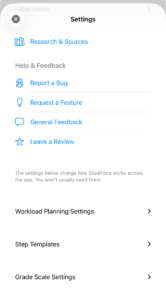
Research & Sources opens the collection of sources behind the app’s default settings—the reasoning for why the defaults are what they are.
Help & Feedback holds four links. Report a Bug and Request a Feature each open their own form on the support portal. General Feedback opens a short, completely anonymous form. Leave a Review opens StudiFoca’s App Store page with a review ready to write.
Settings you won’t usually need
Below Help & Feedback, a caption marks the change: “The settings below change how StudiFoca works across the app. You won’t usually need them.”
The line isn’t about difficulty. What the three settings underneath it have in common is reach—each one shows up somewhere other than where you changed it, which is why they sit apart from the day-to-day preferences rather than mixed in among them.
Workload Planning Settings
Two controls. Workload adjustment applies a multiplier to focus-block estimates: Standard makes no adjustment, and the other options add progressively more cushion for work that tends to run longer than planned. Beneath it, a stepper per assignment type sets the starting number of focus blocks for that type.
Both apply at creation. New assignments are created using these values; assignments that already exist keep the estimates they were given. Changing either one doesn’t reach back through work you’ve already planned.
Step Templates
Every assignment type has its own template of suggested steps, used whenever you tap Start Working. Edit these to match how you actually work, and every future breakdown of that type follows suit.
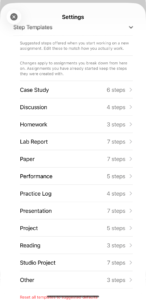
Twelve templates, each showing its current step count. The reset link at the bottom returns them all to the suggested defaults. Tapping into one shows its steps and lets you adjust each one’s block estimate, rename it, remove it, or add a new one.
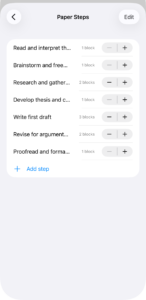
Paper Steps, with a stepper on each step for its block estimate. Add step appends a new one; Edit reorders and removes. Changes here only affect breakdowns generated after you save them; assignments already broken down keep the steps they were given.
Grade Scale Settings
Which grade scale new terms start with.
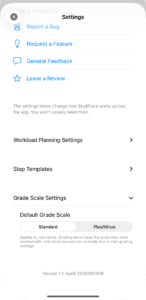
Standard or Plus/Minus. It applies to new terms; existing terms keep the scale they were created with, and individual courses can override it in their own grading settings.
At the very bottom sit the app version and build number. Long-pressing them reveals Copy diagnostic info, which puts the version, build, iOS version, and device model on the clipboard—useful to paste into a bug report.